Connecting Databrain to ClickHouse
Databrain is an embedded analytics platform that enables you to build and share interactive dashboards, metrics, and data visualizations with your customers. Databrain connects to ClickHouse using the HTTPS interface, making it easy to visualize and analyze your ClickHouse data with a modern, user-friendly interface.
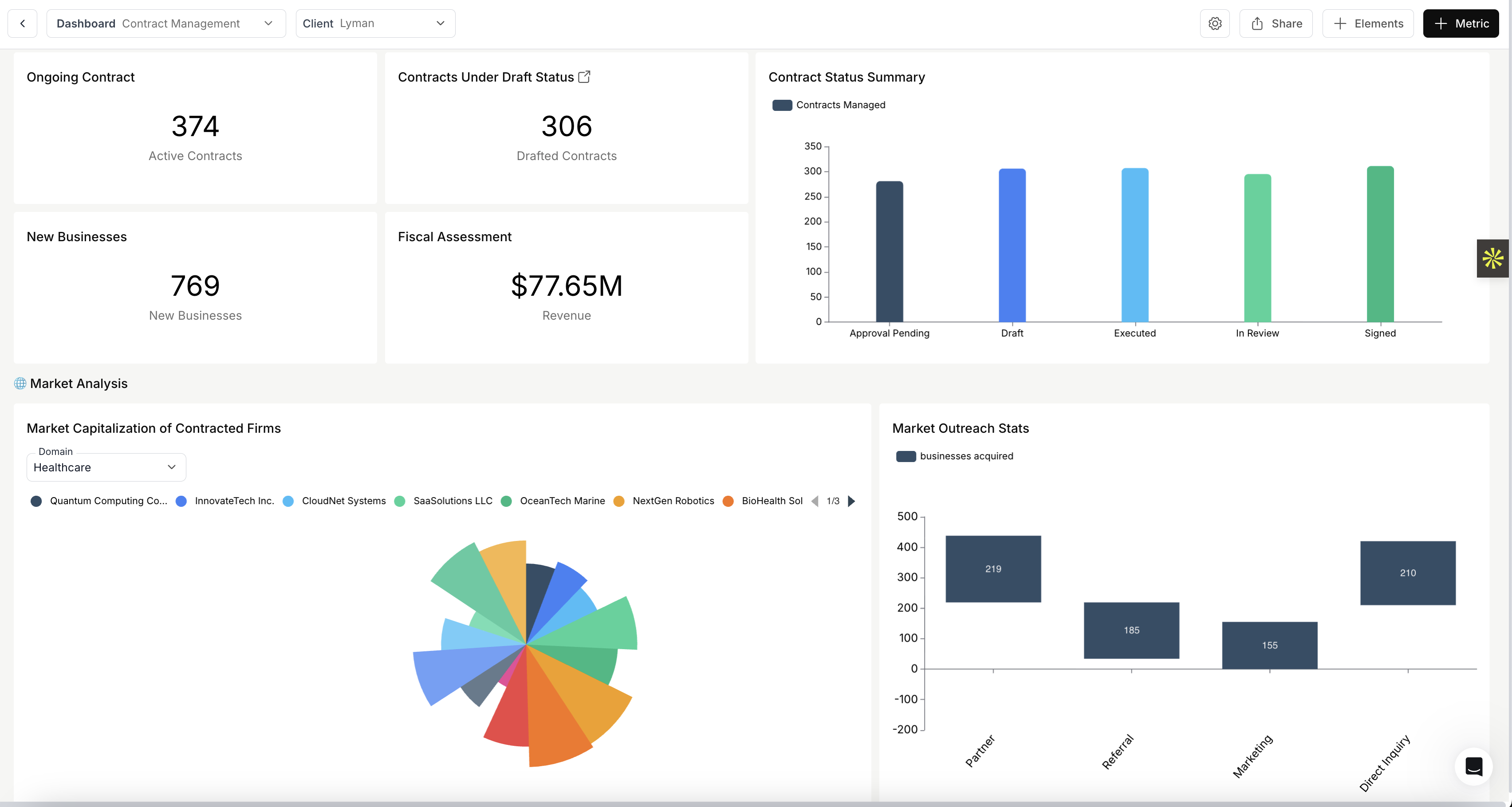
This guide will walk you through the steps to connect Databrain with your ClickHouse instance.
Pre-requisites
- A ClickHouse database either hosted on your own infrastructure or on ClickHouse Cloud.
- A Databrain account.
- A Databrain workspace to connect your data source.
Steps to connect Databrain to ClickHouse
1. Gather your connection details
To connect to ClickHouse with HTTP(S) you need this information:
| Parameter(s) | Description |
|---|---|
HOST and PORT | Typically, the port is 8443 when using TLS or 8123 when not using TLS. |
DATABASE NAME | Out of the box, there is a database named default, use the name of the database that you want to connect to. |
USERNAME and PASSWORD | Out of the box, the username is default. Use the username appropriate for your use case. |
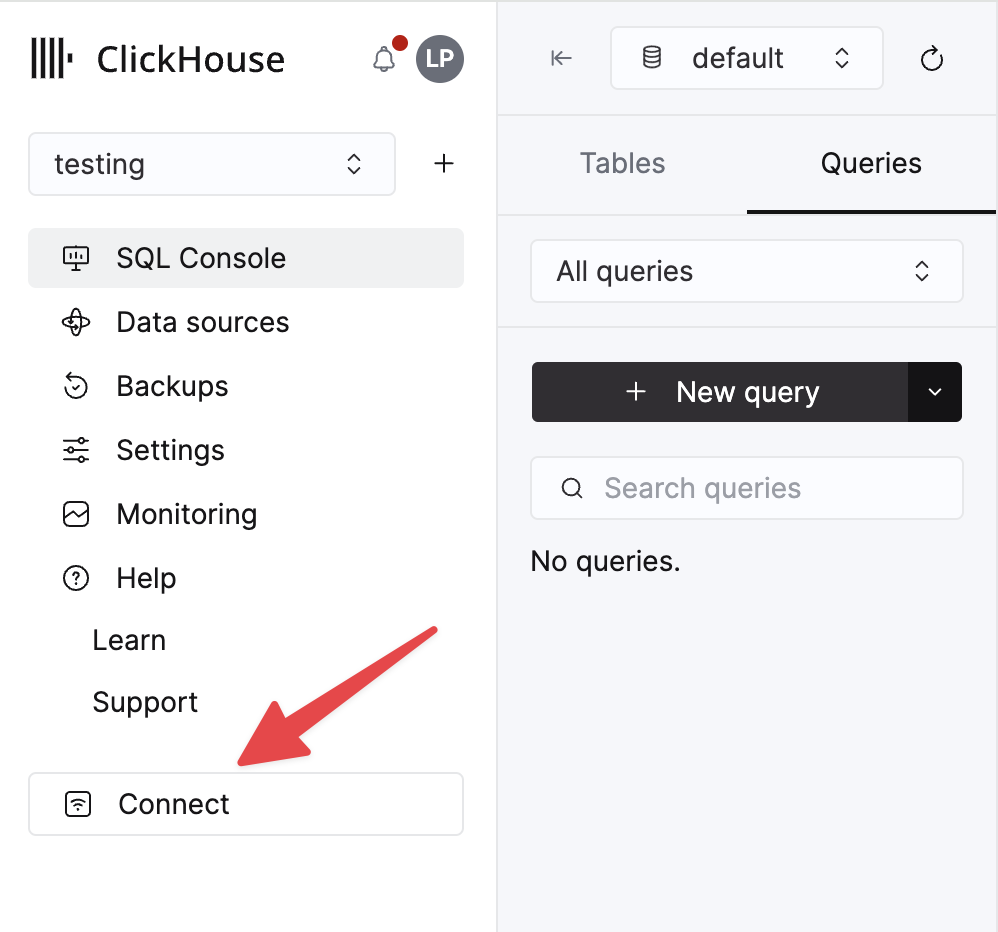
The details for your ClickHouse Cloud service are available in the ClickHouse Cloud console. Select a service and click Connect:
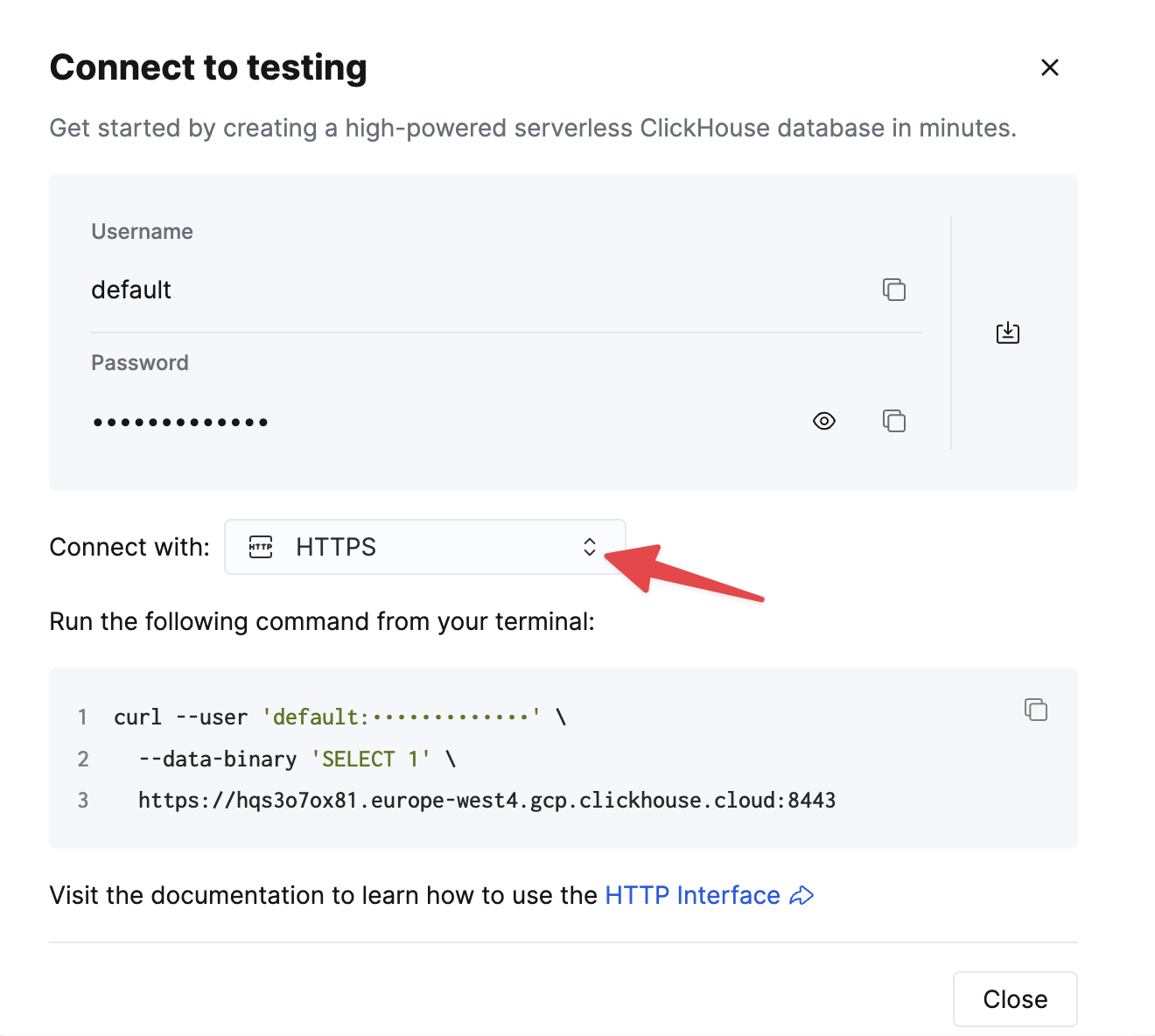
Choose HTTPS. Connection details are displayed in an example curl command.
If you are using self-managed ClickHouse, the connection details are set by your ClickHouse administrator.
2. Allow Databrain IP addresses (if required)
If your ClickHouse instance has IP filtering enabled, you'll need to whitelist Databrain's IP addresses.
For ClickHouse Cloud users:
- Navigate to your service in the ClickHouse Cloud console
- Go to Settings → Security
- Add Databrain's IP addresses to the allow list
Refer to Databrain's IP whitelisting documentation for the current list of IP addresses to whitelist.
3. Add ClickHouse as a data source in Databrain
-
Log in to your Databrain account and navigate to the workspace where you want to add the data source.
-
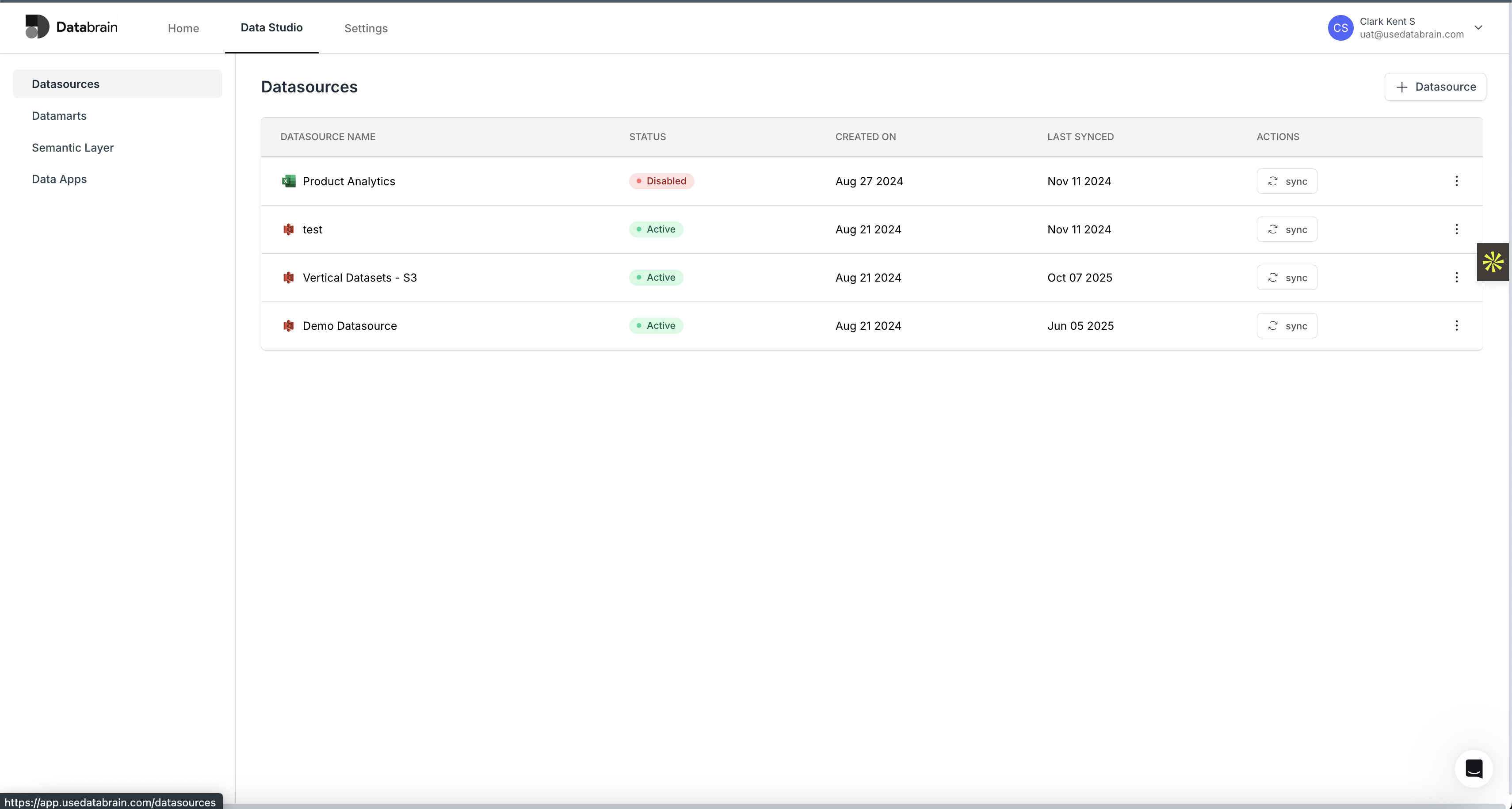
Click on Data Sources in the navigation menu.
-
Click Add a Data Source or Connect Data Source.
-
Select ClickHouse from the list of available connectors.
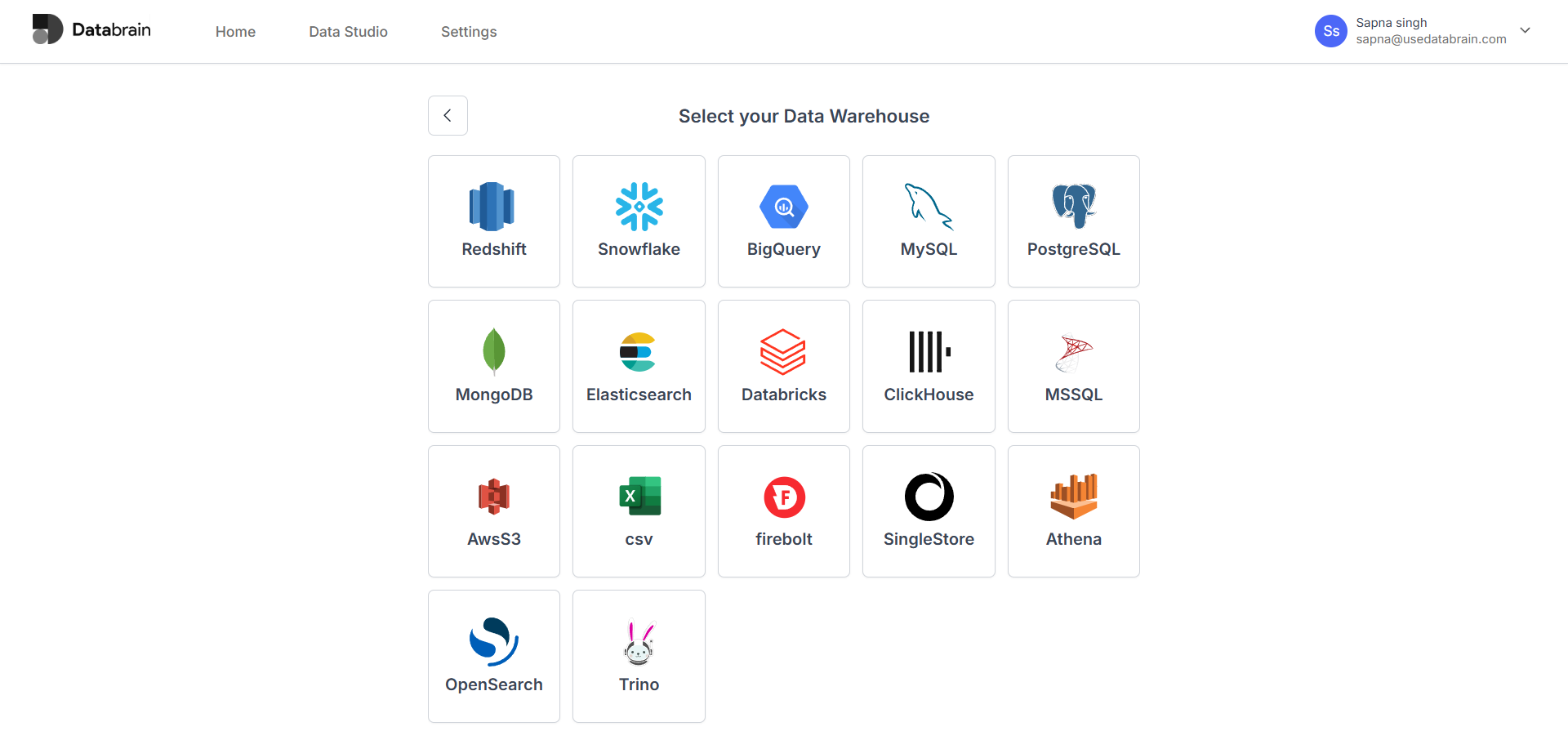
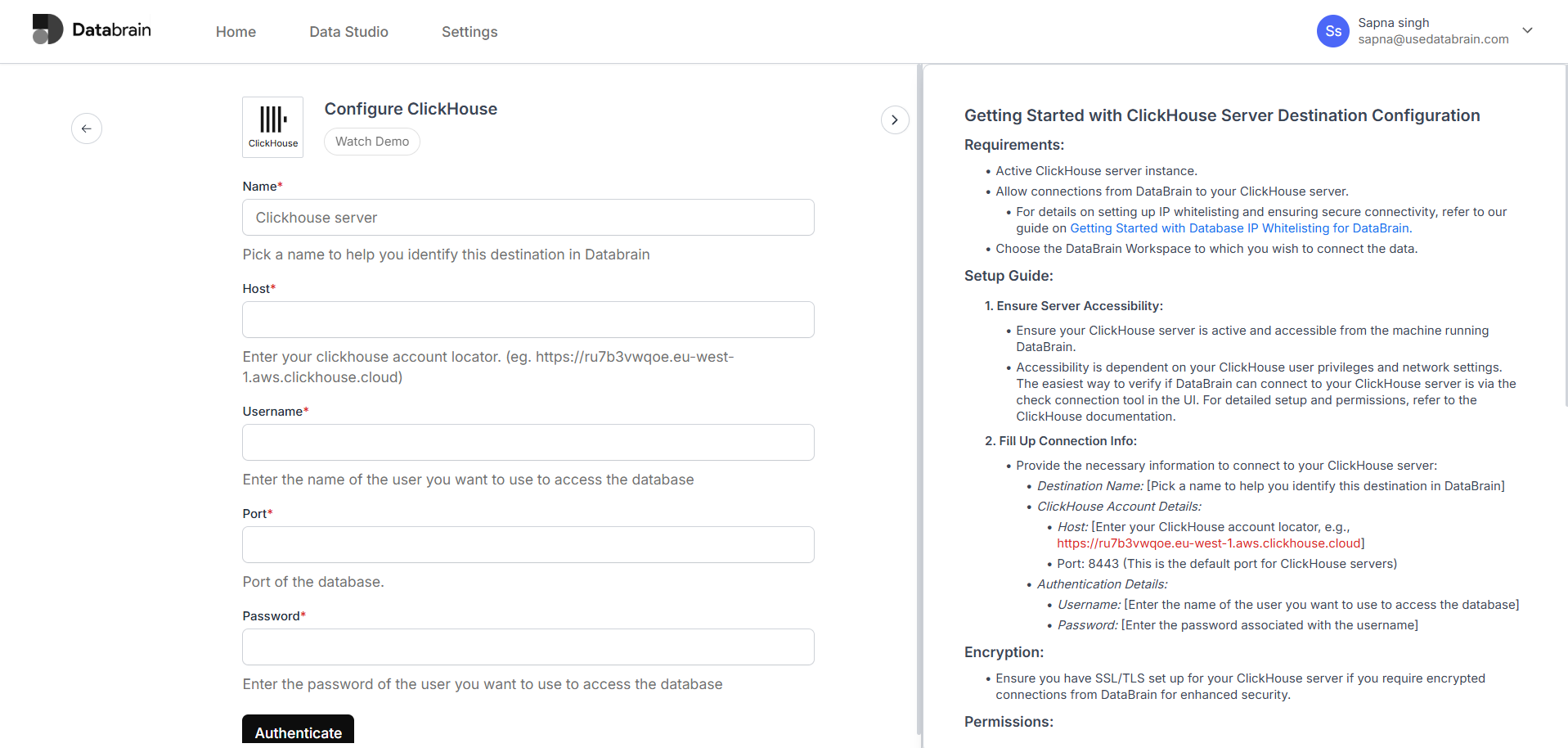
- Fill in the connection details:
- Destination Name: Enter a descriptive name for this connection (e.g., "Production ClickHouse" or "Analytics DB")
- Host: Enter your ClickHouse host URL (e.g.,
https://your-instance.region.aws.clickhouse.cloud) - Port: Enter
8443(default HTTPS port for ClickHouse) - Username: Enter your ClickHouse username
- Password: Enter your ClickHouse password
-
Click Test Connection to verify that Databrain can connect to your ClickHouse instance.
-
Once the connection is successful, click Save or Connect to add the data source.
4. Configure user permissions
Ensure the ClickHouse user you're connecting with has the necessary permissions:
Replace your_databrain_user and your_database with your actual username and database name.
Using Databrain with ClickHouse
Explore your data
-
After connecting, navigate to your workspace in Databrain.
-
You'll see your ClickHouse tables listed in the data explorer.
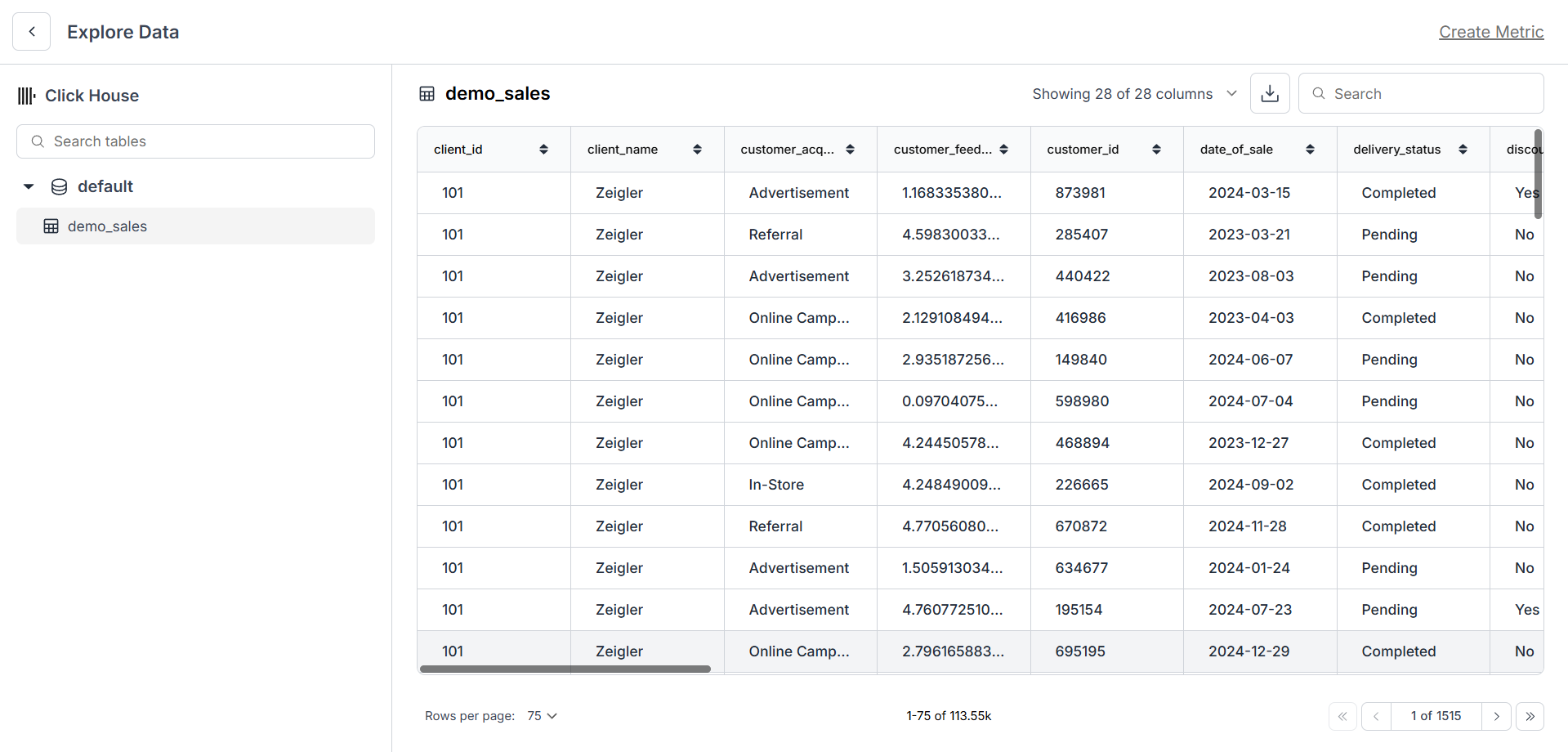
- Click on a table to explore its schema and preview the data.
Create metrics and visualizations
-
Click Create Metric to start building visualizations from your ClickHouse data.
-
Select your ClickHouse data source and choose the table you want to visualize.
-
Use Databrain's intuitive interface to:
- Select dimensions and measures
- Apply filters and aggregations
- Choose visualization types (bar charts, line charts, pie charts, tables, etc.)
- Add custom SQL queries for advanced analysis
-
Save your metric to reuse it across dashboards.
Build dashboards
-
Click Create Dashboard to start building a dashboard.
-
Add metrics to your dashboard by dragging and dropping saved metrics.
-
Customize the layout and appearance of your dashboard.
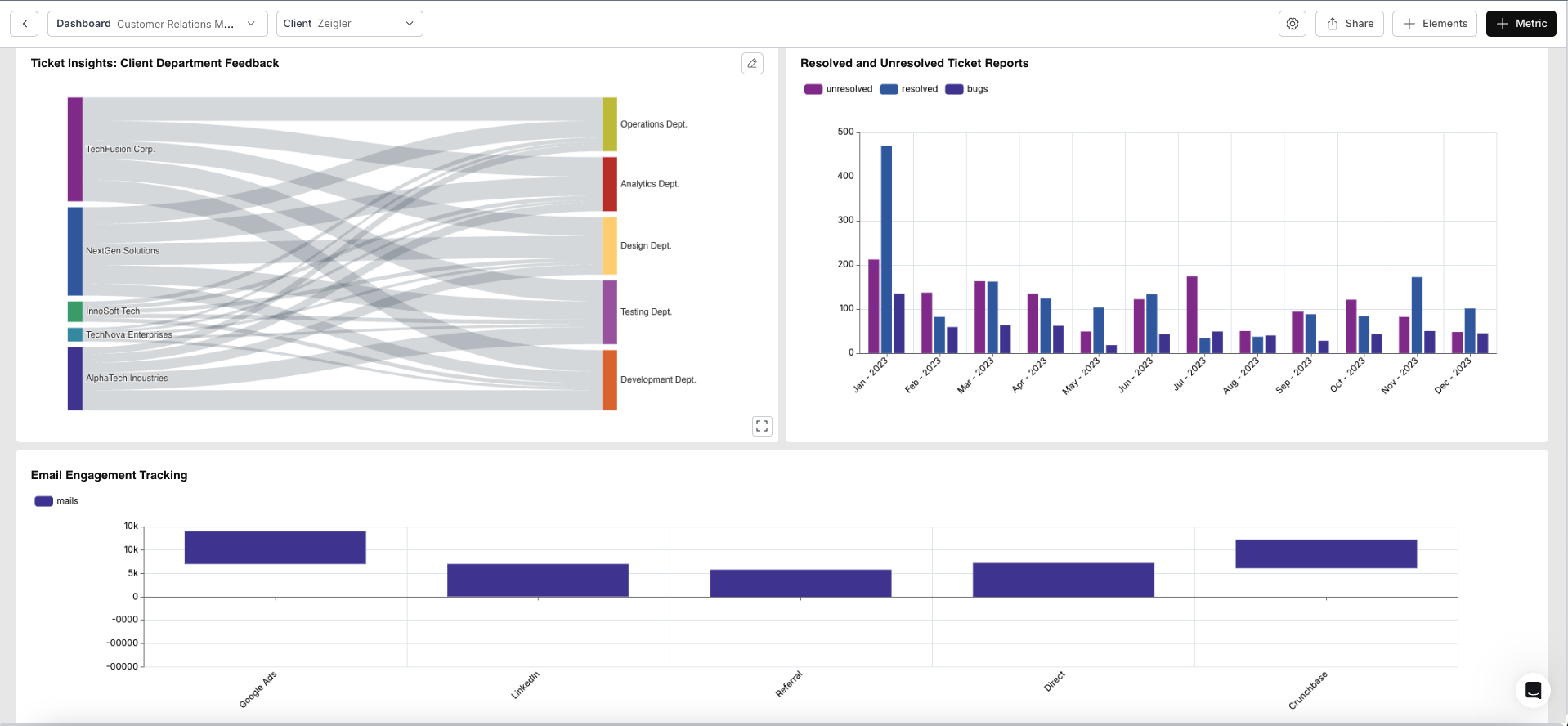
- Share your dashboard with your team or embed it in your application.
Advanced features
Databrain offers several advanced features when working with ClickHouse:
- Custom SQL Console: Write and execute custom SQL queries directly against your ClickHouse database
- Multi-tenancy and single-tenancy: Connect your Clickhouse database, with both single-tenant and multi-tenant architectures
- Report Scheduling: Schedule automated reports and email them to stakeholders
- AI-powered Insights: Use AI to generate summaries and insights from your data
- Embedded Analytics: Embed dashboards and metrics directly into your applications
- Semantic Layer: Create reusable data models and business logic
Troubleshooting
Connection fails
If you're unable to connect to ClickHouse:
- Verify credentials: Double-check your username, password, and host URL
- Check port: Ensure you're using port
8443for HTTPS (or8123for HTTP if not using SSL) - IP whitelisting: Confirm that Databrain's IP addresses are whitelisted in your ClickHouse firewall/security settings
- SSL/TLS: Ensure SSL/TLS is properly configured if you're using HTTPS
- User permissions: Verify the user has SELECT permissions on
information_schemaand your target databases
Slow query performance
If queries are running slowly:
- Optimize your queries: Use filters and aggregations efficiently
- Create materialized views: For frequently accessed aggregations, consider creating materialized views in ClickHouse
- Use appropriate data types: Ensure your ClickHouse schema uses optimal data types
- Index optimization: Leverage ClickHouse's primary keys and skipping indices
Learn more
For more information about Databrain features and how to build powerful analytics:
